Email problems usually fall into three groups: nothing sends, contacts are excluded, or email lands in spam.
Nothing sends#
- Open Settings → Email Delivery and check the status cards. Email delivery should read Ready.
- If it says Setup required, configure a provider — see Email delivery.
- For Bring Your Own Email, choose Test connection, then send a test email.
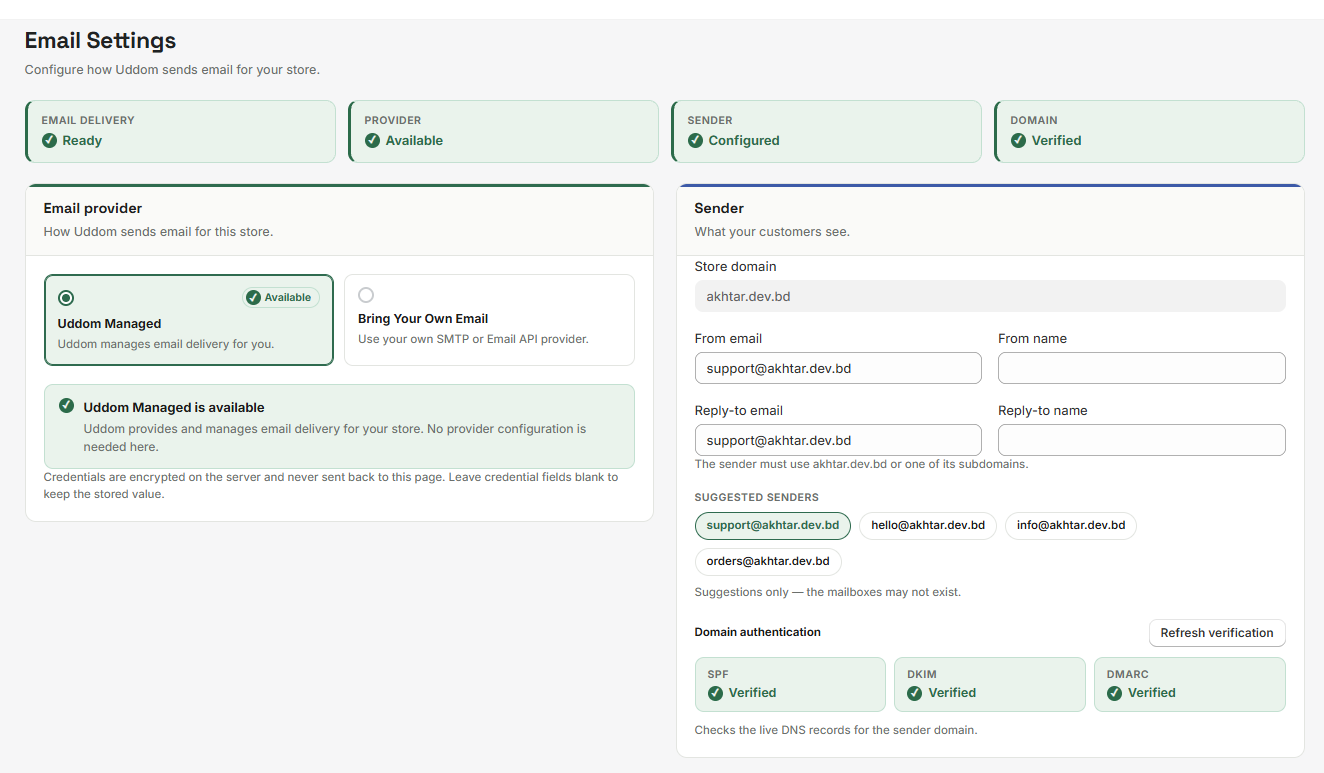 Email delivery status cards
Contacts are excluded#
Only contacts with the status Subscribed can receive marketing email. If the confirmation screen shows everyone as Excluded:
- The contacts were imported without confirming consent, so they are Unsubscribed.
- Or they unsubscribed previously.
Fix their status in the list (use Mark subscribed) once you have their consent.
“Over limit” recipients#
A single run sends at most 100 emails. Contacts beyond that are marked Over limit — send them in another run.
Email lands in spam#
- Verify your SPF, DKIM and DMARC records, then choose Refresh verification.
- Use a sender address on a domain you own.
- Keep subject lines relevant and avoid spammy phrasing.
“Accepted” but no delivery#
When a send shows Accepted, it means your email provider took the message. It does not confirm the email arrived. Check the recipient’s inbox and spam folder.
Recovery email does not send#
- Confirm Delivery shows Ready.
- Confirm a published Abandoned Checkout template is selected.
- Check the delay — a long delay means the email is scheduled for later.