The Countdown timer shows a clock counting down to the end of your offer. It gives shoppers a visible deadline, which helps them decide now rather than later.
What it does#
You set a start and end date and time, plus a title and message. Uddom shows the timer during that window.
Why use it#
A deadline turns “someday” into “today”. A countdown is the clearest way to say that an offer really does end.
How to enable it#
- Open Growth → CRO and find Countdown timer in the Urgency group.
- Switch the toggle on.
- Choose Configure and set the dates, times and wording.
- Save.
Configuration#
| Setting | What it does |
|---|---|
| Start date | The day the timer begins showing. |
| Start time | Start time in 24-hour format, for example 22:00. Default: 00:00. |
| End date | The day the timer stops. |
| End time | End time in 24-hour format, for example 23:59. Default: 23:59. |
| Title | The heading above the clock. Default: “Limited time offer”. |
| Message | The line under the clock. Default: “Offer ends soon!”. |
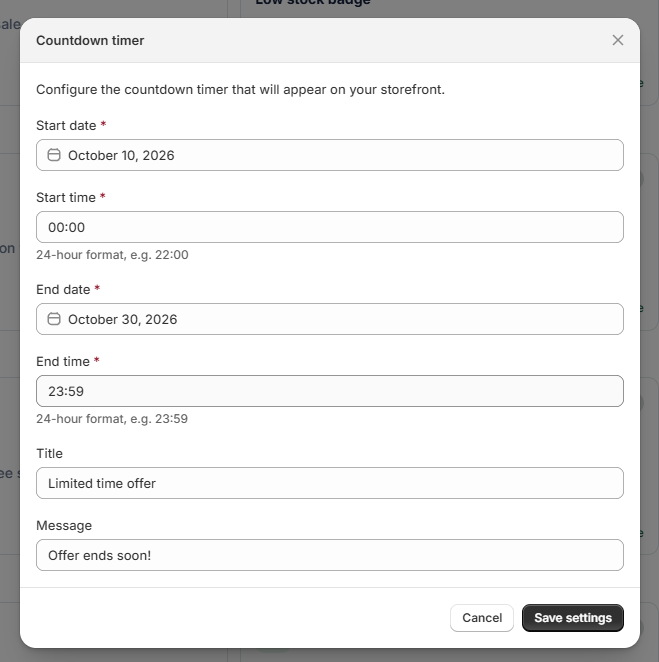 Countdown timer settings
What customers see#
Shoppers see your title, a live countdown to the end date and your message.
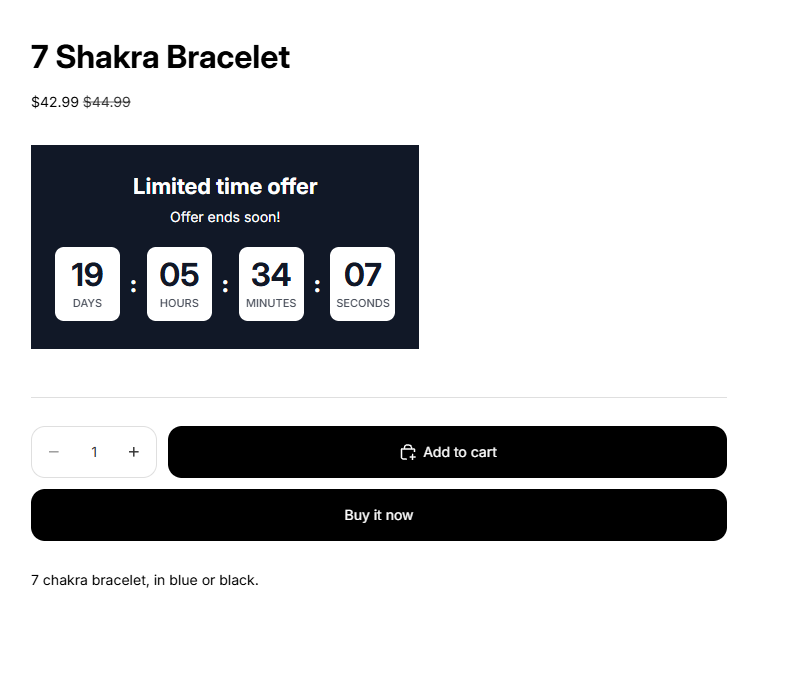 Storefront result: countdown timer
Best practices#
- Only run a countdown while a real offer is live, so the deadline stays believable.
- Use a message that says what happens when time runs out, for example “Sale prices end soon”.
Troubleshooting#
- The timer is not showing. Confirm today’s date falls between the start and end dates, and that the module is switched on and configured.
- The times look wrong. Times use 24-hour format. Enter 14:00 for 2 pm.