The Free shipping & gift bar is a progress bar in the cart that shows shoppers how close they are to your rewards: free shipping, spend-based discount tiers and a free gift.
What it does#
Based on the cart total, Uddom shows the remaining amount and, when a goal is reached, an unlocked message. You can offer up to three kinds of reward at once and choose where the bar appears.
Why use it#
A progress bar gives shoppers a clear reason to add one more item. It is one of the most effective ways to raise average order value without discounting your whole catalogue.
How to enable it#
- Open Growth → CRO and find Free shipping & gift bar in the Cart recovery group.
- Switch the toggle on.
- Choose Configure and set your rewards, messages and appearance.
- Save. The app embed places the bar automatically based on the display location you choose.
Configuration#
Rewards#
| Reward | Settings |
|---|---|
| 🚚 Free shipping | Free shipping threshold (default 50), currency symbol, icon — an emoji, or your own icon image. |
| 🏷️ Spend-based discount tiers | Add as many tiers as you like. Each tier has a spend threshold, a discount percentage, an icon (emoji or image) and a discount code. |
| 🎁 Free gift | Free gift threshold, icon (emoji or image), gift product, gift discount percentage, add the gift to the cart automatically, and remove the gift if the cart drops below the goal. |
Every reward — free shipping, each discount tier and the free gift — can use an emoji or an image of your own. Next to the Icon field, Upload image sends a new file to your Shopify files, and Choose existing opens Shopify’s own file picker so you can reuse an image that is already there. Remove image goes back to the emoji. The image replaces the emoji wherever that reward’s icon appears: the milestone markers above the bar, and the preview beside these settings.
Spend-based discount tiers use real Shopify discount codes. Create each code in Shopify admin → Discounts, then enter its code in the tier. Set a minimum purchase amount on the code equal to the tier’s spend amount: the codes are visible to shoppers, and the minimum stops them being used early.
Messages#
Every message is editable with placeholders:
{{amount}} for the remaining amount,
{{discount}} for a tier’s percentage and
{{gift}} for the gift name. You get separate messages
for free shipping, discount tiers, the free gift, “all rewards
unlocked” and an empty cart.
Cart behavior#
| Setting | What it does |
|---|---|
| Calculate progress after discounts | Measures progress on the discounted total. Default: on. |
| Convert goals to the customer's currency | Shows amounts in the shopper’s currency. Default: on. |
| Hide the bar when the cart is empty | Hides the bar on an empty cart. Default: off. |
Display#
| Setting | What it does |
|---|---|
| Display location | Cart drawer, Cart page, or both. Default: both. |
| Show progress bar | Default: on. |
| Show reward markers on the bar | Default: on. |
| Show remaining amount | Default: on. |
| Animate progress | Default: on. |
| Celebrate with confetti when a reward unlocks | Default: on. |
Appearance#
Choose a Bar style (Classic, Boxed card, Pill, Minimal or Gradient fill), a Box alignment (Left, Center or Right) and a Bar thickness (Slim, Normal or Bold). You can also set the progress colour, completed colour, background and text colour.
The settings screen includes a Preview with a Try a cart total slider so you can see the bar react before you save.
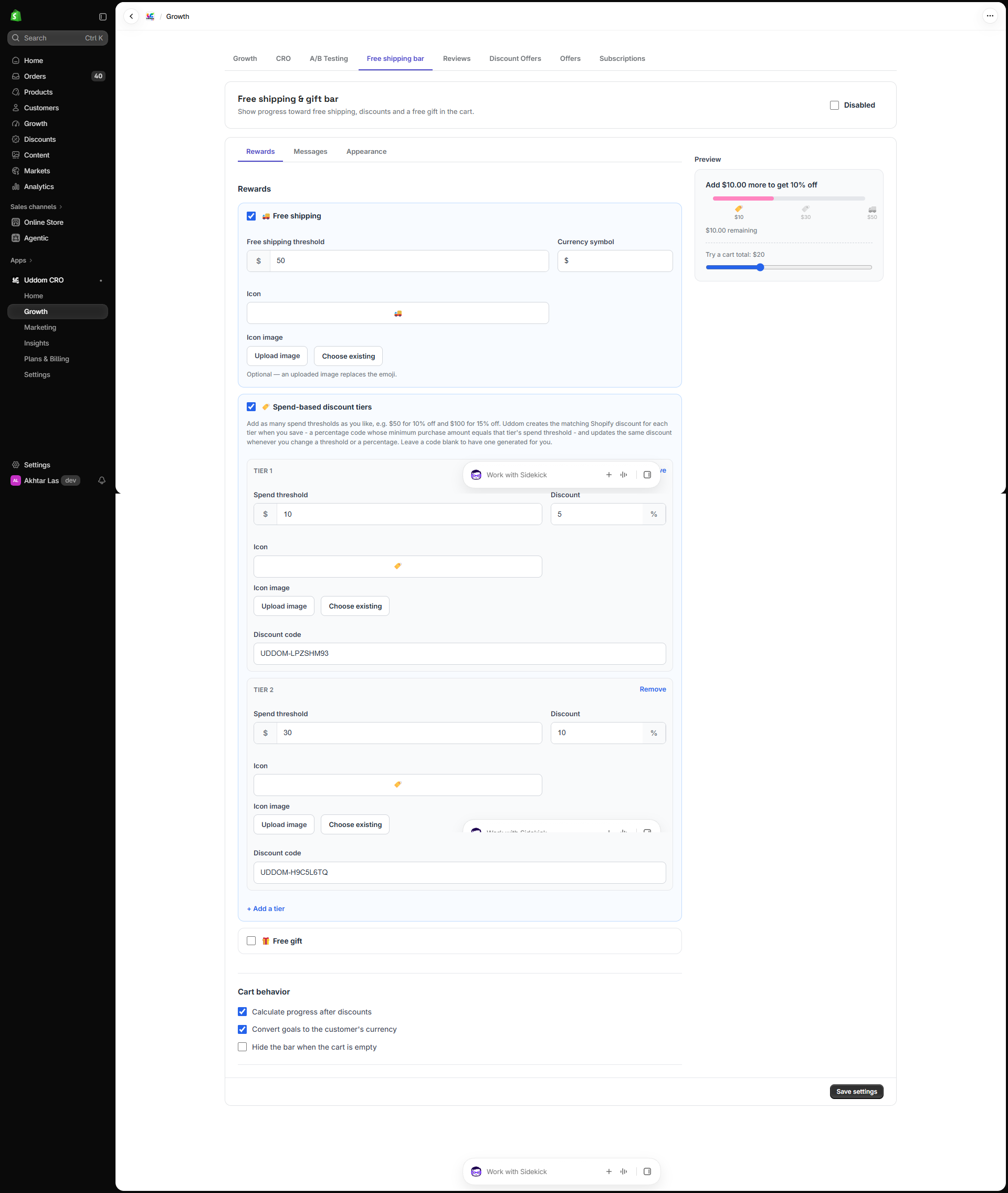 Free shipping & gift bar settings
What customers see#
In the cart (drawer, page, or both), shoppers see a progress bar with the remaining amount to the next reward, and an unlocked message when they reach it.
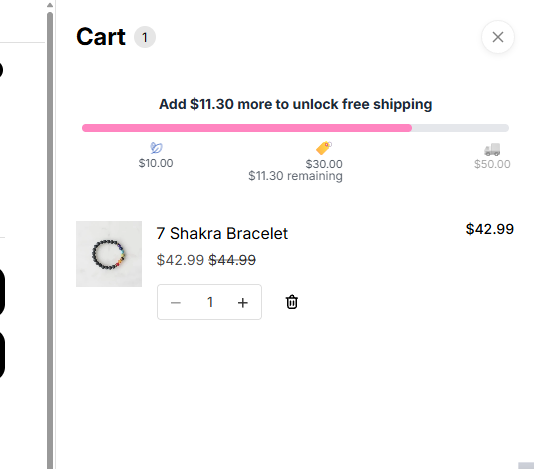 Storefront result: free shipping bar in the cart
Best practices#
- Set the free shipping threshold slightly above your average order value, so a small extra item reaches it.
- Use consistent reward icons so the bar reads at a glance. An uploaded icon image is drawn at the emoji’s own size, so a square, tightly cropped image looks best.
- Keep the empty-cart message welcoming rather than pushy.
Troubleshooting#
- The bar is not visible. Confirm the app embed is enabled and the display location matches where you are looking (drawer vs cart page).
- A discount tier does not apply. Check the discount code exists in Shopify, is active, and has a minimum purchase amount equal to the tier.
- Amounts look wrong. Review Calculate progress after discounts and the currency conversion option.