Welcome to Uddom. This section walks you through everything you need to do once, before you start switching features on and configuring them.
The four setup steps#
Work through these in order. Each one takes a few minutes.
- Install Uddom from the Shopify App Store and open it from your Shopify admin. Installing Uddom
- Enable the Uddom app embed in your theme. Most storefront features will not appear until this is switched on. Enable the app embed
- Set up email delivery if you plan to use abandoned checkout recovery or marketing email. You can skip this until you need it. Email delivery
- Turn on and configure your first module under Growth. CRO modules
What you will see in the app#
Uddom is organised into six areas, shown along the top of the app:
| Area | What you do there |
|---|---|
| Home | Check your setup progress, store health and at-a-glance numbers. |
| Growth | Turn on CRO modules, run A/B tests, manage offers, reviews and subscriptions. |
| Marketing | Build email lists, import contacts, create templates and recover abandoned checkouts. |
| Insights | Review how your modules and experiments performed. |
| Plans & billing | Plan and billing information. |
| Settings | Email delivery and reusable email templates. |
Your first module in 5 minutes#
- Go to Growth → CRO.
- Find a module, for example Low stock badge or Trust badge strip.
- Switch its toggle on.
- Choose Configure and fill in the settings, then Save.
- Open your storefront to check the result. If nothing appears, confirm the app embed is enabled — see Enable the app embed.
Start with one or two modules and let them run for a week. Turning on everything at once makes it hard to tell what is actually helping.
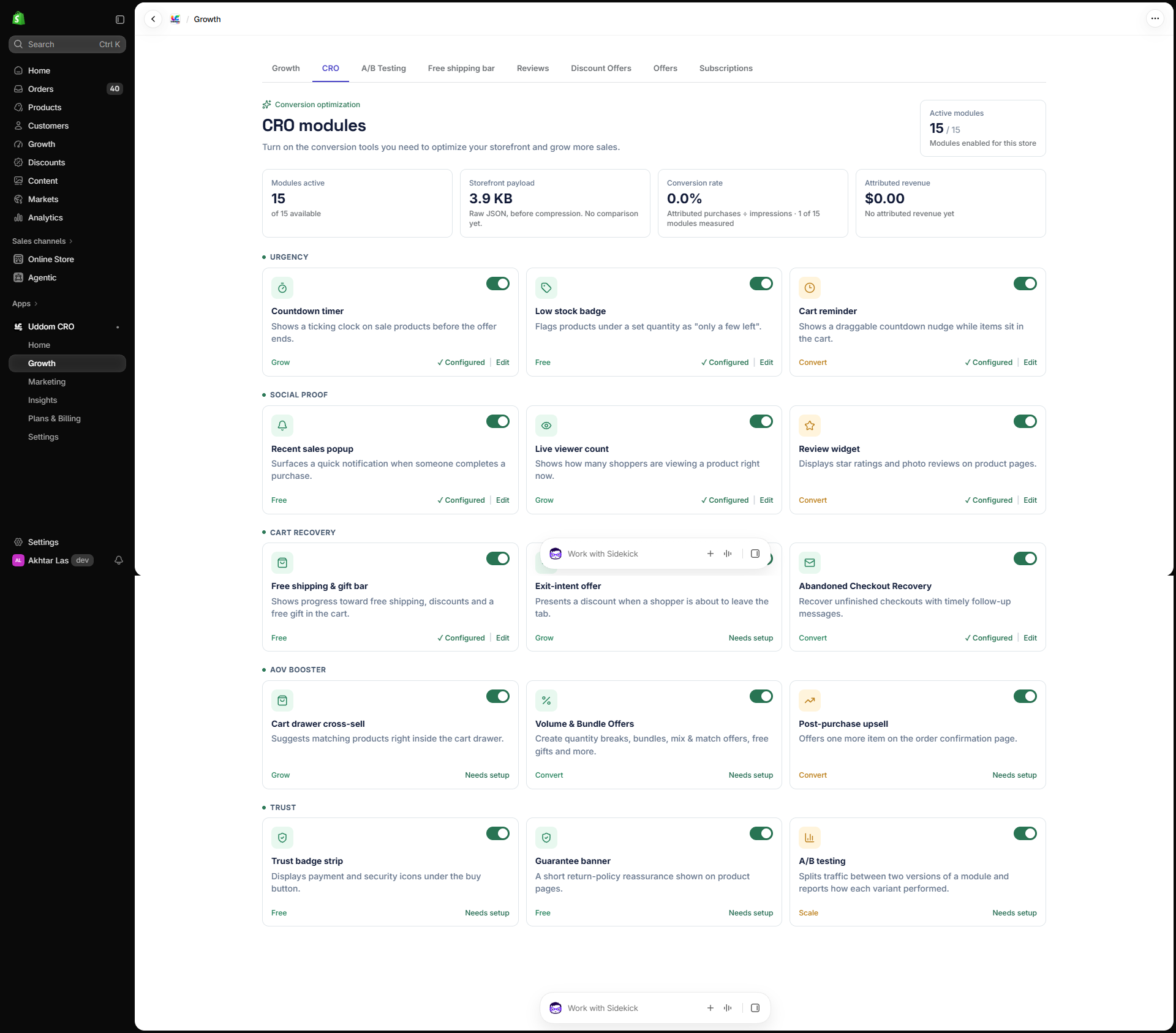 CRO module grid in the Uddom app
Getting help#
If something does not behave as described, start with Troubleshooting, then check the FAQ. Most setup problems come down to the app embed not being enabled, or a module being switched on but not configured.