Abandoned checkout recovery brings shoppers back by emailing them after they leave checkout without finishing. Uddom can send automatically on a delay you choose, or you can send a recovery email manually.
What it does#
Uddom finds eligible abandoned checkouts, and after your chosen delay sends them a recovery email using a template you pick. You can include a discount to sweeten the offer.
Automatic vs manual#
| Mode | How it works |
|---|---|
| Automatic | Configure the rules once and Uddom sends on schedule. |
| Manual | Review the abandoned checkouts list and send a recovery email yourself. |
Automatic recovery#
Open Marketing → Email Marketing → Abandoned Checkouts. At the top you will see two status chips: Automation (Active or Off) and Delivery (Ready or Setup required).
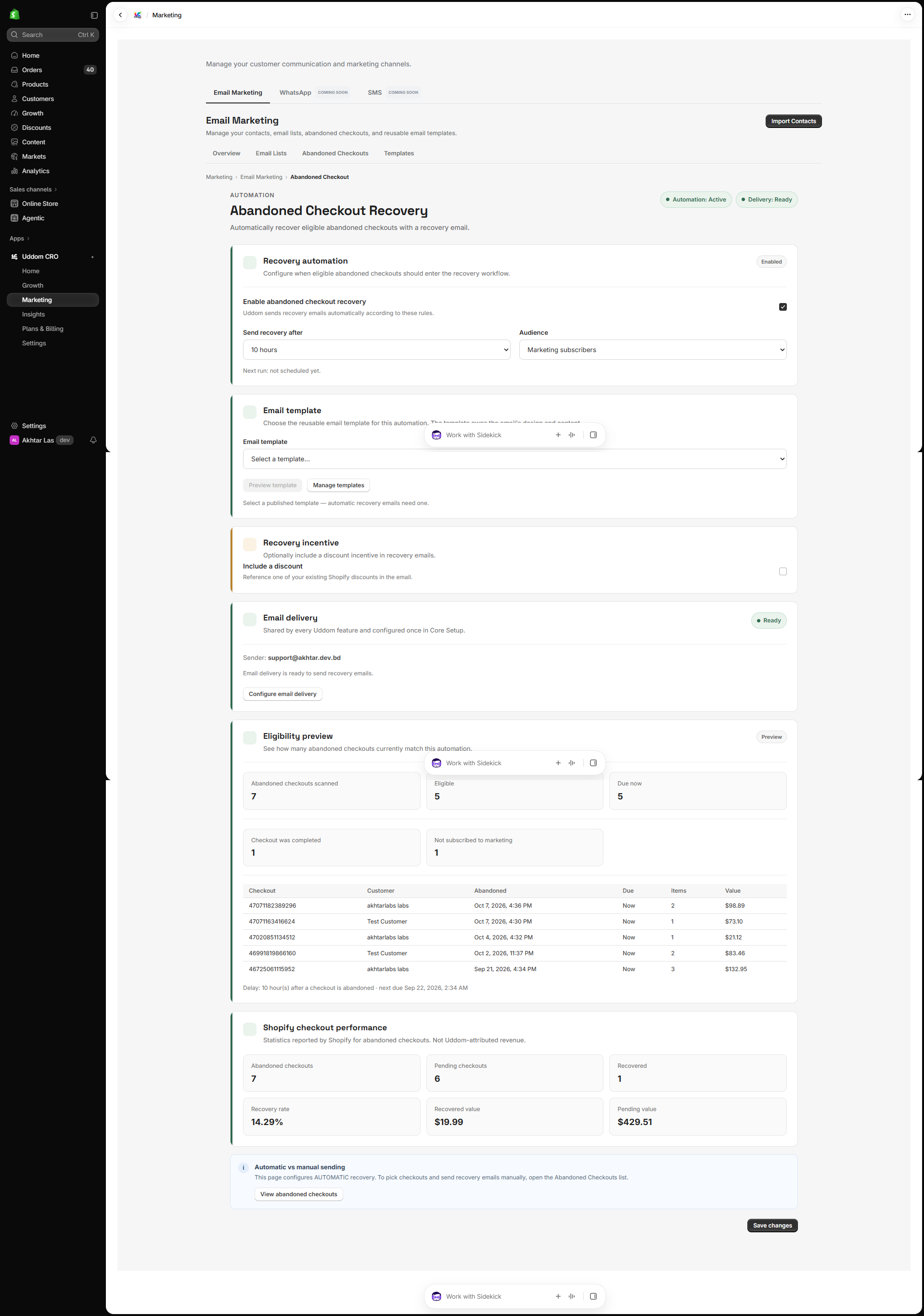 Abandoned Checkout Recovery page
Recovery automation#
| Setting | What it does |
|---|---|
| Enable abandoned checkout recovery | When on, Uddom sends recovery emails automatically according to these rules. |
| Send recovery after | How long to wait: 1 hour, 3 hours, 6 hours, 10 hours, 24 hours, 48 hours or Custom. Default: 10 hours. |
| Custom delay | When you choose Custom, the delay in hours (1–168). |
| Audience | Marketing subscribers or All eligible customers. Default: Marketing subscribers. |
The card also shows a schedule line such as Next run: 5 scheduled, 2 due now.
Email template#
Choose the reusable template the automation uses. Only published Abandoned Checkout templates can be selected. You can Preview template, Manage templates or Create template from here.
Recovery incentive#
Switch on Include a discount to reference one of your existing Shopify discounts in the email. The code is shown to the customer when the email is sent.
Eligibility preview and checkout performance#
The page shows an eligibility preview — Abandoned checkouts scanned, Eligible, Due now and Customer details unavailable, with a table of checkouts. A separate Shopify checkout performance card shows figures reported by Shopify (Abandoned checkouts, Pending checkouts, Recovered, Recovery rate, Recovered value and Pending value). These are Shopify’s own figures, not Uddom-attributed revenue.
Choose Save changes to apply your automation settings.
Manual recovery#
- Open Abandoned Checkouts and use the filters or Search customer or email to find a checkout.
- Select the ones you want, or Select all sendable.
- Choose Send Recovery Email.
- Pick a published recovery template and continue.
- Confirm, then review the result (Accepted, Failed, Skipped).
The same limit applies here as elsewhere: process the rest in another run.
Automatic and manual recovery both need a working sender. If Delivery shows Setup required, configure it under Email delivery first.
Best practices#
- A short delay (a few hours) often recovers more than a long one, before the shopper buys elsewhere.
- Only include a discount if you need it — recovery emails without a discount protect your margin.
- Write a specific, friendly subject line for your recovery template.
Troubleshooting#
- Automation is on but nothing sends. Check Delivery is Ready and that a published recovery template is selected.
- No checkouts appear. Abandoned checkouts show up once shoppers leave checkout without completing.
- “No published recovery templates yet.” Publish an Abandoned Checkout template under Settings → Email Templates.