Under Growth → CRO you will find every on-site conversion tool Uddom offers. Each one is a card with a short description, a plan label and an on/off toggle. Switch a module on, open Configure, fill in the settings and save — that is the whole workflow.
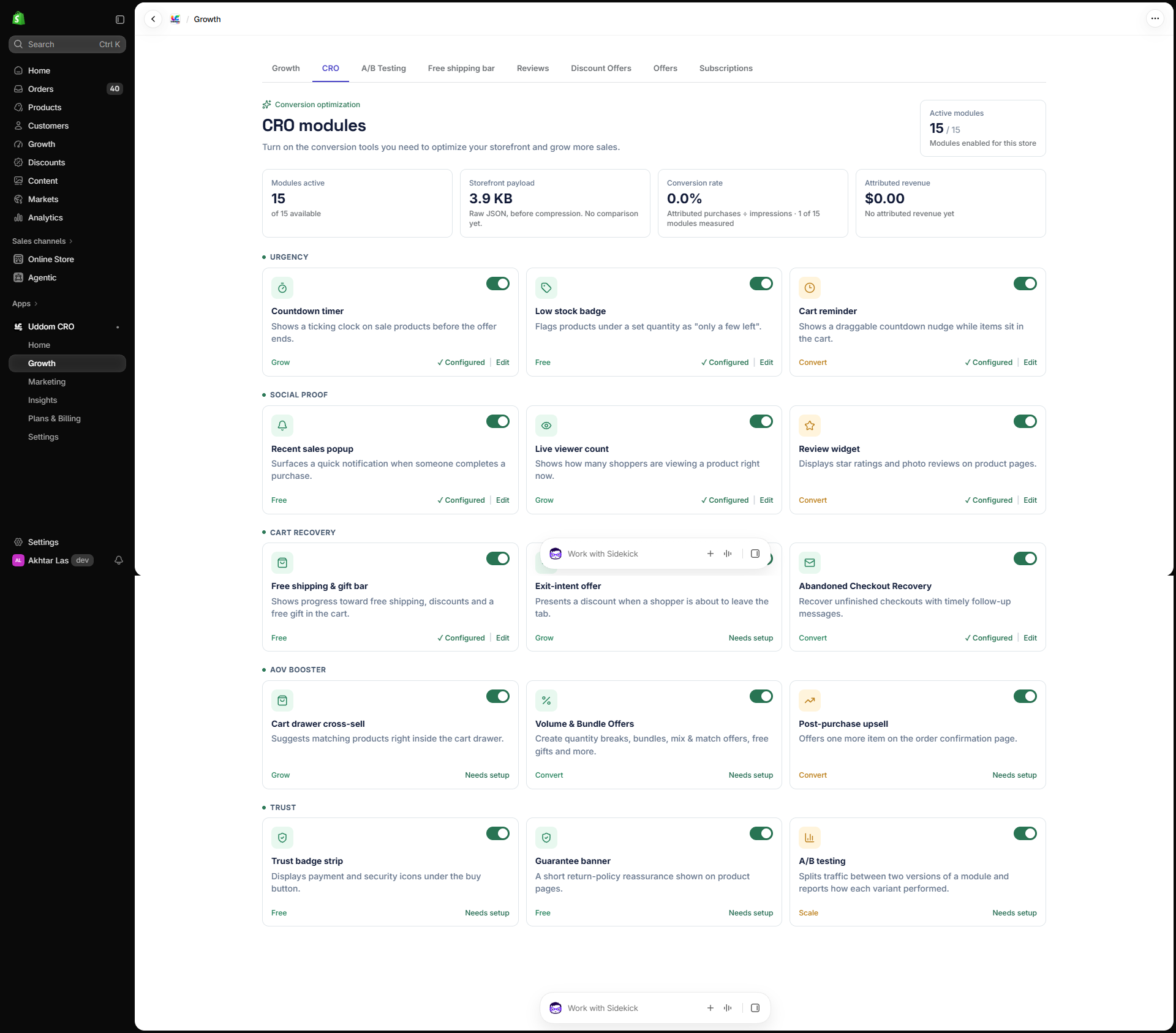 Growth → CRO module grid
How modules are grouped#
| Group | Modules |
|---|---|
| Urgency | Countdown timer, Low stock badge, Cart reminder |
| Social proof | Recent sales popup, Live viewer count, Review widget |
| Cart recovery | Free shipping & gift bar, Exit-intent offer, Abandoned Checkout Recovery |
| AOV booster | Cart drawer cross-sell, Volume & Bundle Offers, Post-purchase upsell |
| Trust | Trust badge strip, Guarantee banner, A/B testing |
Plan labels#
Each module card shows a plan label so you can see which plan a feature belongs to at a glance. Uddom uses four plan labels:
| Label | Meaning |
|---|---|
| Free | Included on the free plan. |
| Grow | Part of the Grow plan. |
| Convert | Part of the Convert plan. |
| Scale | Part of the Scale plan. |
See Plans & billing for the current state of plan and billing information.
Turning a module on#
- Open Growth → CRO.
- Switch the module’s toggle on.
- Choose Configure and complete its settings.
- Save. A module that is on but not configured will not show correctly on your storefront.
Most modules need the Uddom app embed to be enabled in your theme. If a module is on and configured but nothing appears, check Enable the app embed first.
The CRO stats header#
The top of the CRO page summarises your setup with four cards: Modules active (how many of the available modules are on), Storefront payload, Conversion rate and Attributed revenue. Two of these depend on analytics data — see Metrics for how they are measured and how Uddom discloses coverage.
Where to go next#
- New to Uddom? Start with Getting started.
- Want to test a change? See A/B testing.
- Want to understand the numbers? See Analytics.