The Low stock badge flags products that are running low, so shoppers see “only a few left” next to the buy button. It is one of the simplest ways to add honest urgency to a product page.
What it does#
You set a stock threshold, and Uddom shows a badge on any product whose available quantity is at or below that number. You choose the wording, and you can let the exact number be fixed or varied per product.
Why use it#
Limited availability is a strong reason to act now. A low stock badge gives shoppers a concrete, believable nudge without discounting.
How to enable it#
- Go to Growth → CRO and find Low stock badge in the Urgency group.
- Switch the toggle on.
- Choose Configure and complete the settings below.
- Save, then check a low-stock product on your storefront.
Configuration#
| Setting | What it does |
|---|---|
| Enable low stock badge | Turns the badge on or off inside the module. |
| Show badge when stock is | The threshold. The badge appears when stock is at or below this number. Default: 5. |
| Badge text |
The message shown. Use {count} where the stock
number should appear. Default: “Only {count} left”.
|
Stock value#
Each selected product can have its own displayed stock value, so the badges are not all identical.
| Setting | What it does |
|---|---|
| Generate random stock values | When on, Uddom picks a value for each product within your minimum and maximum, instead of you typing a number. |
| Minimum | Lowest value that can be generated. Default: 2. |
| Maximum | Highest value that can be generated. Default: 8. |
Products#
Choose which products use a product-specific low stock value. Use Configure products to open the product picker, search for products and select them. Each selected product gets either a Stock value you type or, in random mode, a generated Displayed stock value. Generate new values re-rolls the random values.
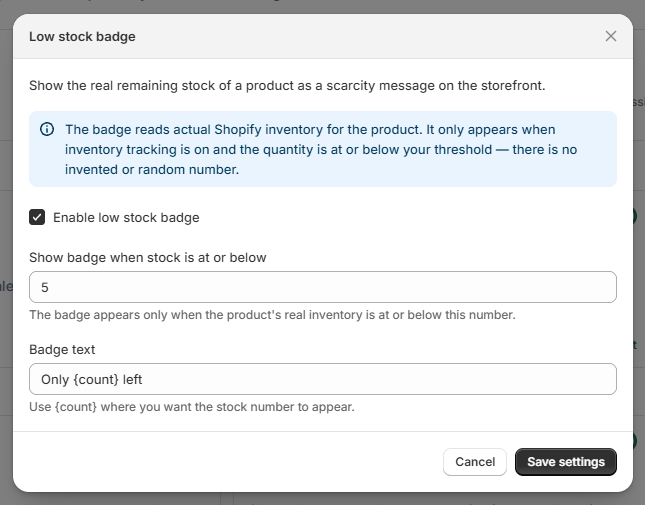 Low stock badge settings
What customers see#
Shoppers see a small badge near the product’s buy area with your message, for example Only 3 left. The number is the one Uddom has for that product.
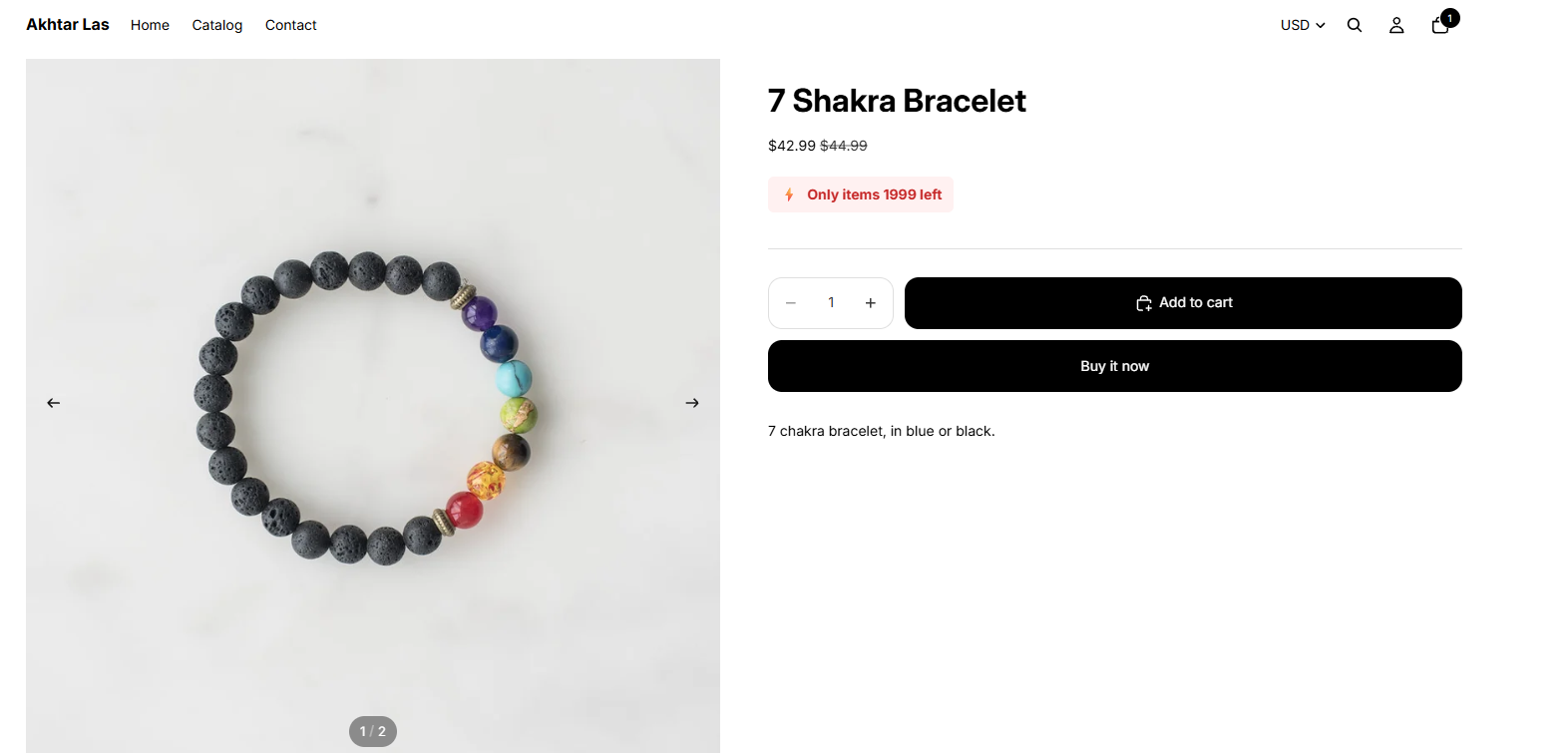 Storefront result: low stock badge
Best practices#
- Set the threshold to the point where stock genuinely feels low, so the badge stays credible.
- Keep the wording short — it sits next to the buy button.
- Use the per-product values so a wide catalogue does not show the same number everywhere.
Troubleshooting#
- No badge appears. Check the product’s stock is at or below your threshold, the module is switched on and configured, and the app embed is enabled.
- The badge shows the same number on every product. Open Configure products and give products their own values, or switch on Generate random stock values.