Email delivery is the shared connection every Uddom email feature sends through. You configure it once, under Settings → Email Delivery, and it is used by marketing sends and abandoned checkout recovery alike.
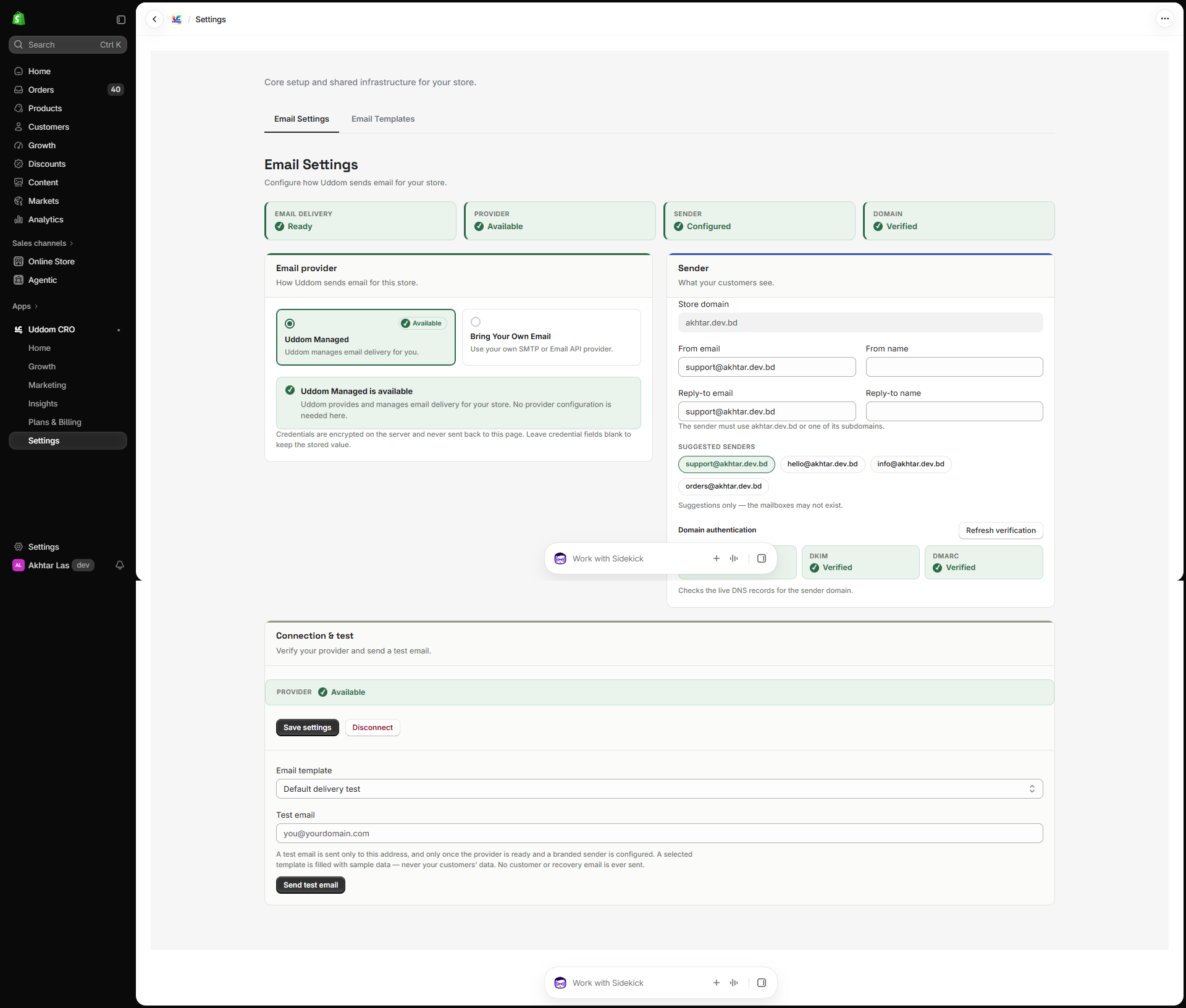 Settings → Email Delivery
Status cards#
The top of the page summarises four things: Email delivery, Provider, Sender and Domain. Their values tell you whether sending is ready.
Email provider#
Choose how Uddom sends email for this store:
| Mode | What it means |
|---|---|
| Uddom Managed | Uddom manages email delivery for you. |
| Bring Your Own Email | Use your own SMTP provider. |
Bring Your Own Email — SMTP#
| Field | What it does |
|---|---|
| SMTP host | Your provider’s SMTP server. |
| SMTP port | Usually 587. |
| Security | STARTTLS (port 587) or Implicit TLS (port 465). |
| Username | Your SMTP username. |
| Password | Your SMTP password. |
Credentials are encrypted and never sent back to the page. Leave the credential fields blank to keep the stored value.
The Email API option is not available yet and shows a Coming soon badge. Use SMTP to send email today.
Sender#
Set what your customers see: From email, From name, Reply-to email and Reply-to name. Your Store domain is shown for reference.
If you have not connected a custom domain, Uddom shows Custom domain required — connect one to use a branded sender address. Suggested senders are suggestions only; the mailboxes may not exist.
Domain authentication#
Uddom checks your sending domain’s records and shows a card for each: SPF, DKIM and DMARC. Each is marked Verified, Pending, Missing, Invalid or Unknown. Use Refresh verification to re-check the live DNS records.
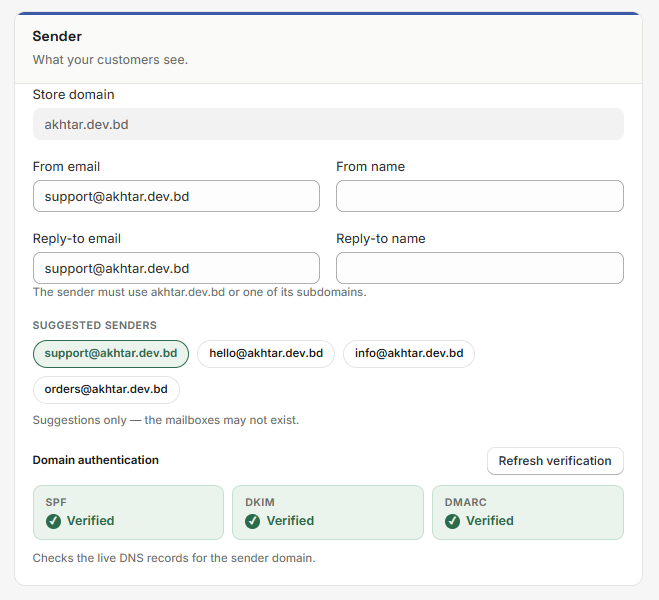 Sender and Domain authentication sections
Connection & test#
Verify your provider and send a test email:
| Action | What it does |
|---|---|
| Save settings | Saves your configuration. |
| Test connection | Checks the connection (available for Bring Your Own Email). |
| Send test email | Sends a test to the address you enter. |
| Disconnect | Removes the current email connection. |
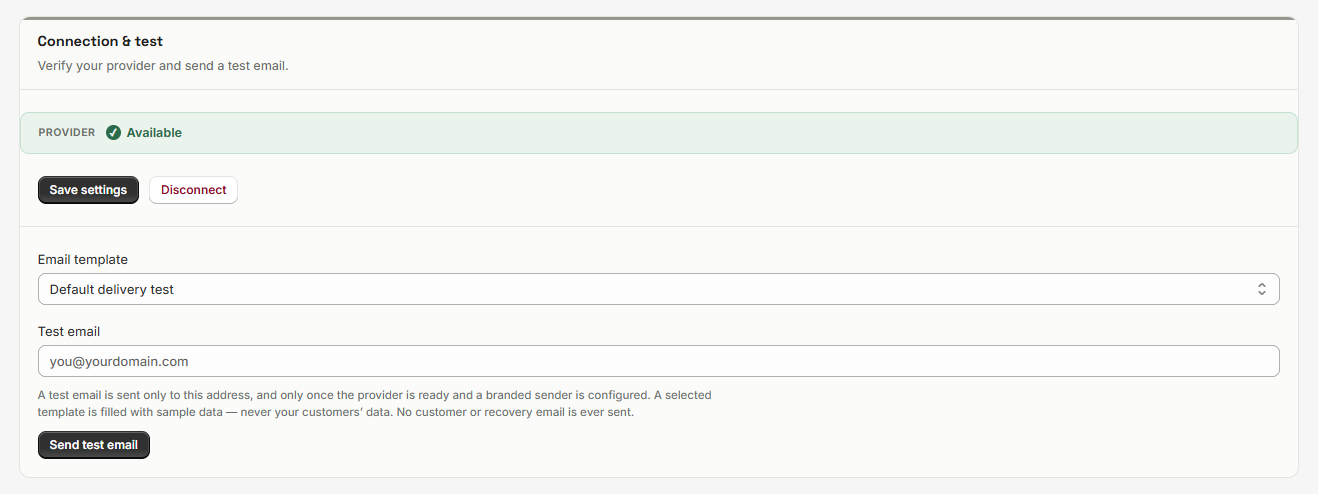 Connection & test section
Best practices#
- Send a test email after any change, and check it arrives in the inbox rather than spam.
- Verify SPF, DKIM and DMARC so your email is trusted by inbox providers.
- Use a sender address on your own domain for a branded experience.
Troubleshooting#
- Email is not sending. Check the status cards, run Test connection, and send a test email.
- Emails land in spam. Verify your SPF, DKIM and DMARC records.
- Deliveries are not confirmed. Even a successful send only means your provider accepted the message; delivery is not confirmed here.