Creating an offer follows seven steps. You can move back and forward between them with Back and Continue, and the final button creates the offer.
The seven steps#
- Offer Type — choose the type of offer you want to create.
- Products — choose which products or collections qualify.
- Rules & Rewards — configure quantities, tiers and rewards.
- Customers — choose who can use the offer.
- Display — choose where and how the offer appears.
- Schedule — choose when the offer should run.
- Review — review the offer before saving it.
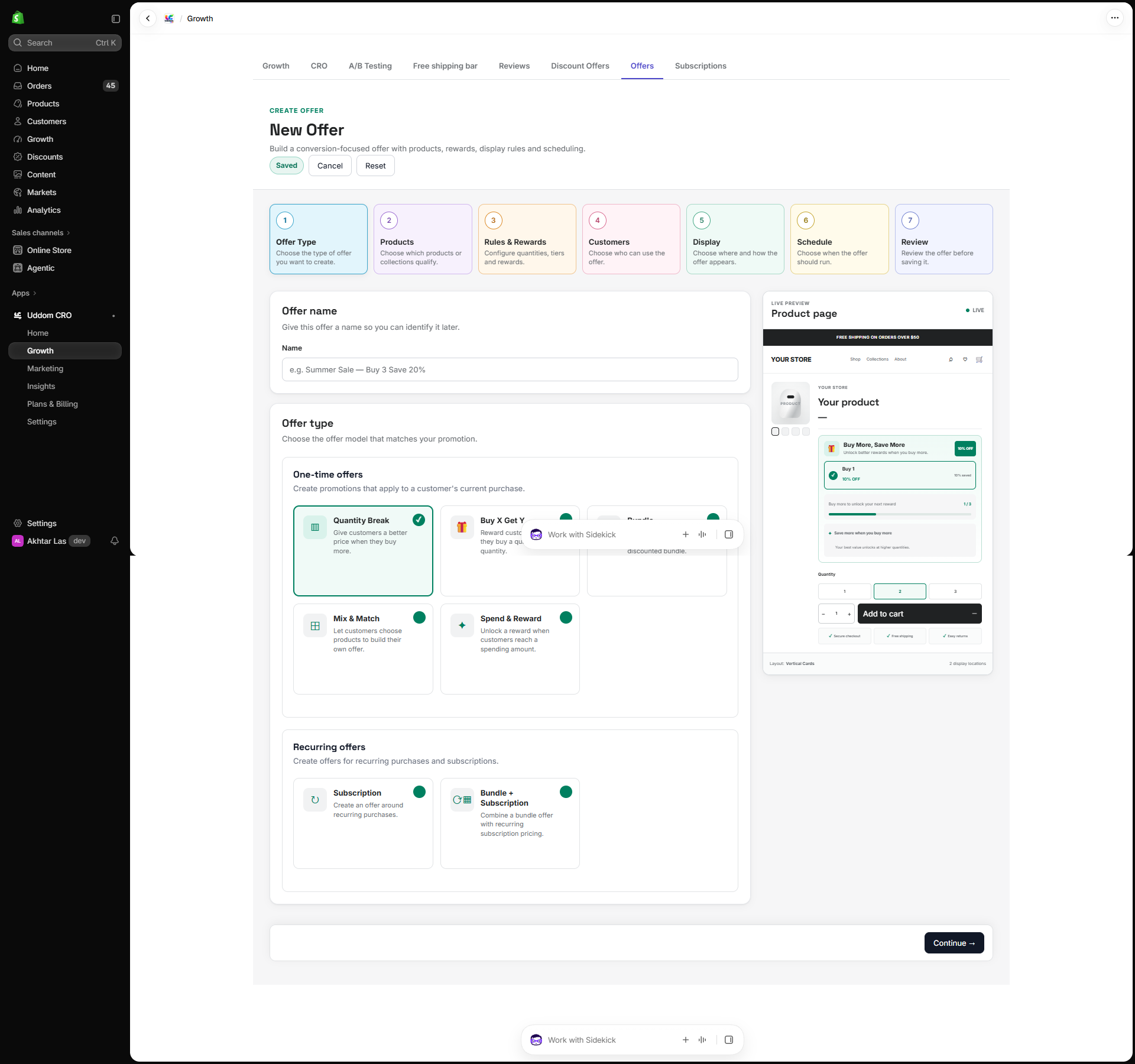 Offer builder
1. Offer name and type#
Give the offer a Name you will recognise later, for example “Summer Sale — Buy 3 Save 20%”. Then choose the Offer type — see Offer types.
2. Products#
Choose which products qualify. Full detail is on Product selection.
3. Rules & Rewards#
Configure your offer tiers: minimum quantity or minimum amount, the reward type and value, a tier label and an optional badge. For bundle-style offers, you can also let customers choose variants, and define Bundle groups with a group name, minimum items and maximum items.
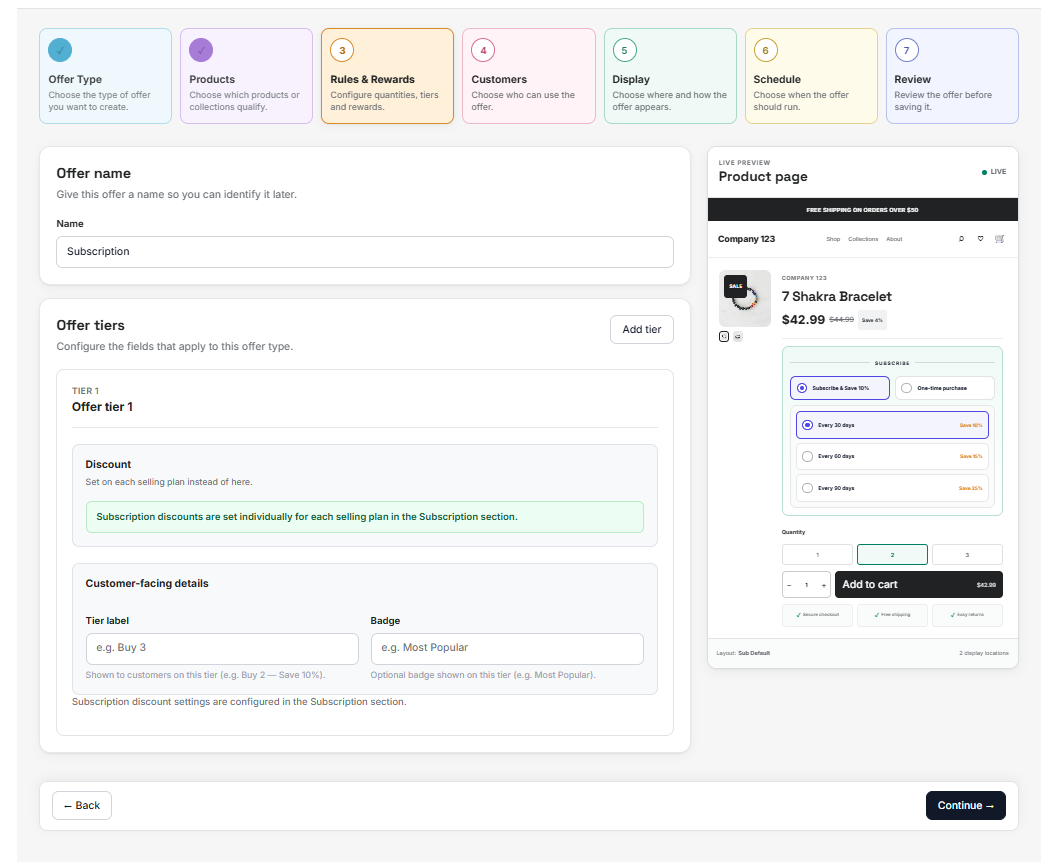 Rules & Rewards step
4. Customers#
| Eligibility | Who the offer is for |
|---|---|
| Everyone | All shoppers. |
| New customers | Shoppers with no previous orders. |
| Returning customers | Shoppers who have ordered before. |
| Customer segment | A Shopify customer segment, identified by its segment ID. |
| Logged-in customers | Shoppers signed into their account. |
Under Discount & reward behavior you can set Allow discount combinations, Prevent stacking, Auto-add free gift and Protect gift inventory.
5. Display#
Choose an Offer layout and where the offer appears:
| Setting | What it does |
|---|---|
| Offer layout | The storefront design for the offer. Different offers have different layout choices. |
| Display locations | Product page, Cart drawer and/or Cart page. |
| Show progress | Shows how close the shopper is to the next tier. |
| Show savings | Shows how much the shopper saves. |
| Highlight recommended tier | Draws attention to the tier you most want shoppers to reach. |
| Show compare-at price | Shows the original price alongside the offer price. |
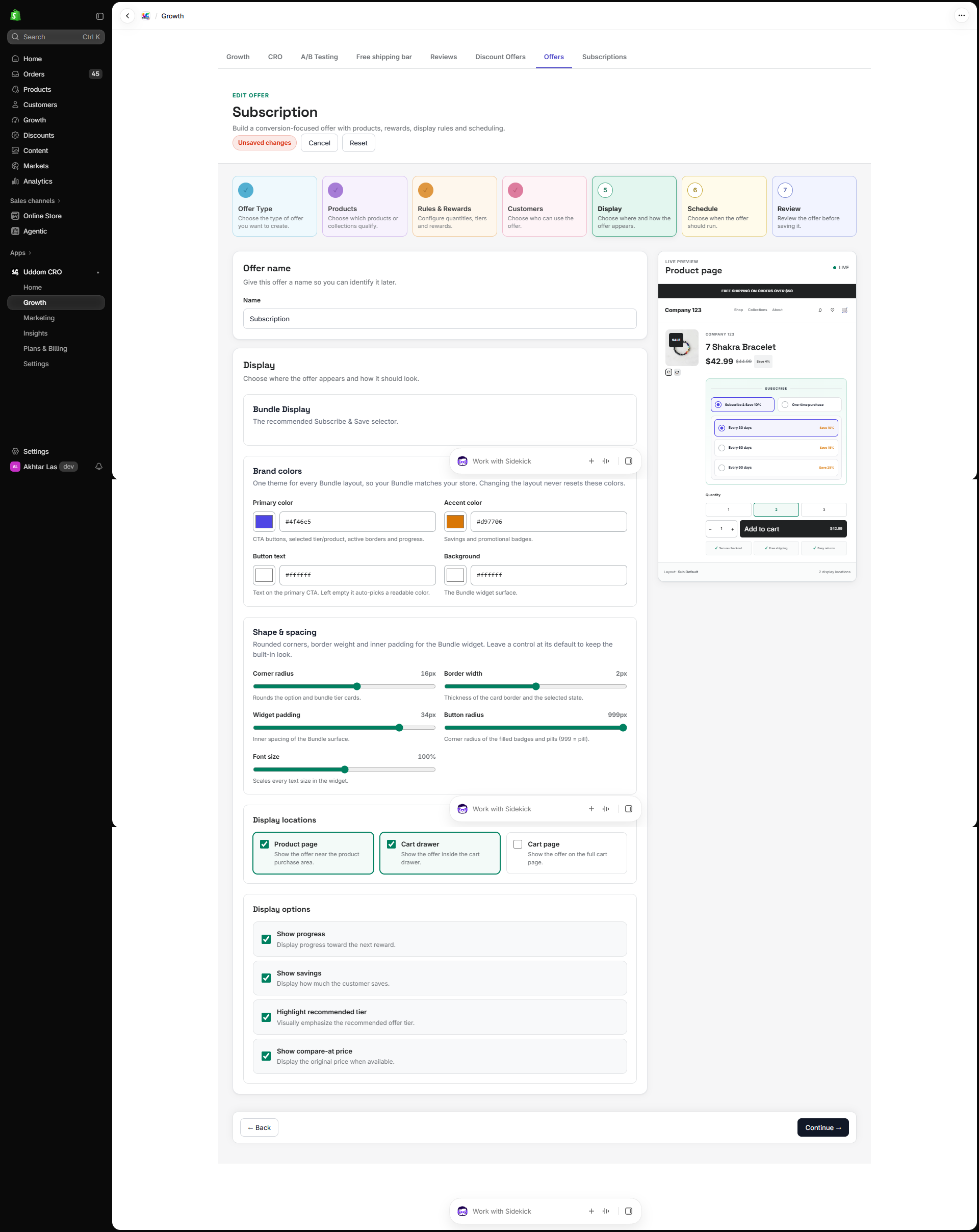 Display step
6. Schedule#
Turn on Enable scheduling to set a start and end date and time and a timezone. Subscription offers also show Subscription settings — see Subscriptions.
7. Review#
The Review step shows a summary of what you have configured: basic information, products, offer tiers, customers, display, schedule, advanced settings and, where relevant, bundle groups. Check it, then create the offer.
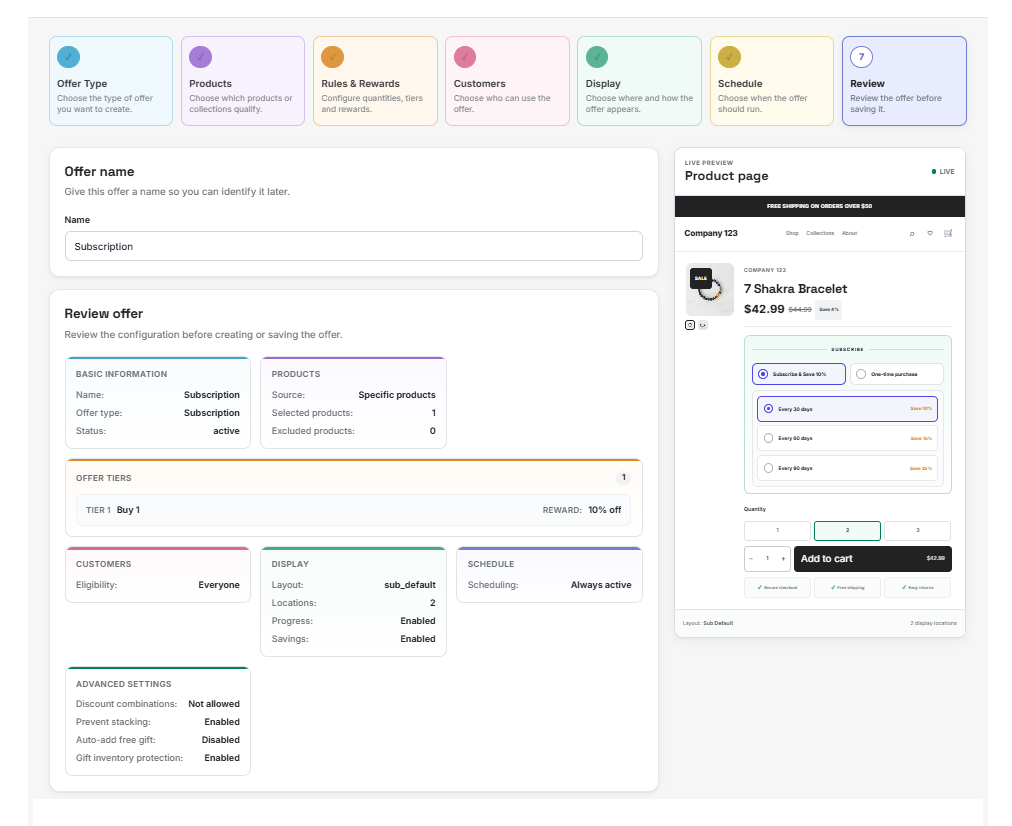 Review step
What happens when you save#
Uddom creates a Shopify discount that applies automatically at checkout — no promo code needed. The offer then appears in your Offers list, where you can pause it, edit it, duplicate it or delete it.
Deleting an offer also removes its Shopify discount. Uddom asks you to confirm before doing this.
Best practices#
- Name offers clearly so you can tell them apart later.
- Preview the layout on your storefront before sharing the offer widely.
- Use the Schedule step so offers start and stop on their own.