The Exit-intent offer presents a discount when a shopper looks like they are about to leave, giving them a reason to stay and complete their purchase.
What it does#
Uddom watches for signs that a shopper is leaving — on desktop, moving the mouse toward the top of the window; on mobile, a fast scroll back up or returning to the tab. When that happens, it shows a popup with an offer you choose. The offer is one of your Discount Offers.
Why use it#
A well-timed offer catches shoppers at the moment they are deciding to leave, and often turns a lost visit into a sale.
Before you start#
Create at least one Discount Offer first — the exit-intent popup can only show offers that already exist.
How to enable it#
- Make sure the Uddom app embed is switched on (Online Store → Themes → Customize → App embeds). The popup is delivered by the app embed, so there is no theme block to add.
- Open Growth → CRO and find Exit-intent offer in the Cart recovery group.
- Switch the toggle on.
- Choose Configure, select your offer and set the content and timing.
- Save, then test it on your storefront.
Configuration#
| Setting | What it does |
|---|---|
| Offer selection | Single Offer shows one offer, or Random Offers picks from a set you choose. |
| Discount offer | In single mode, the discount to show. In random mode, tick the offers that may appear. |
| Popup layout | Classic, Minimal, Bottom bar, Side popup or Full width. Default: Classic. |
| Heading | Default: “Wait! Don’t leave yet”. |
| Message | Default: “Get a special offer before you go…”. |
| Button text | Default: “Claim my offer”. |
| Show popup when | Shopper shows exit intent, After delay, or Exit intent after delay. Default: exit intent. |
| Trigger delay | Seconds to wait when a delay is part of the trigger. |
| How often to show | Once per session, Once per day, or every time the trigger fires. |
| Cooldown between popups | Minutes to wait before the popup can appear again (when showing every time). |
| Maximum popups per session | Upper limit on how often a shopper sees it. |
| Enable on desktop / Enable on mobile | Choose which devices the popup appears on. Both on by default. |
On phones there is no mouse cursor, so “exit intent” is detected from a fast scroll back up the page, or from returning to the tab after leaving it.
When you use Random Offers, the same offer is not shown twice in a row, and each offer stays paired with the product and discount you set up.
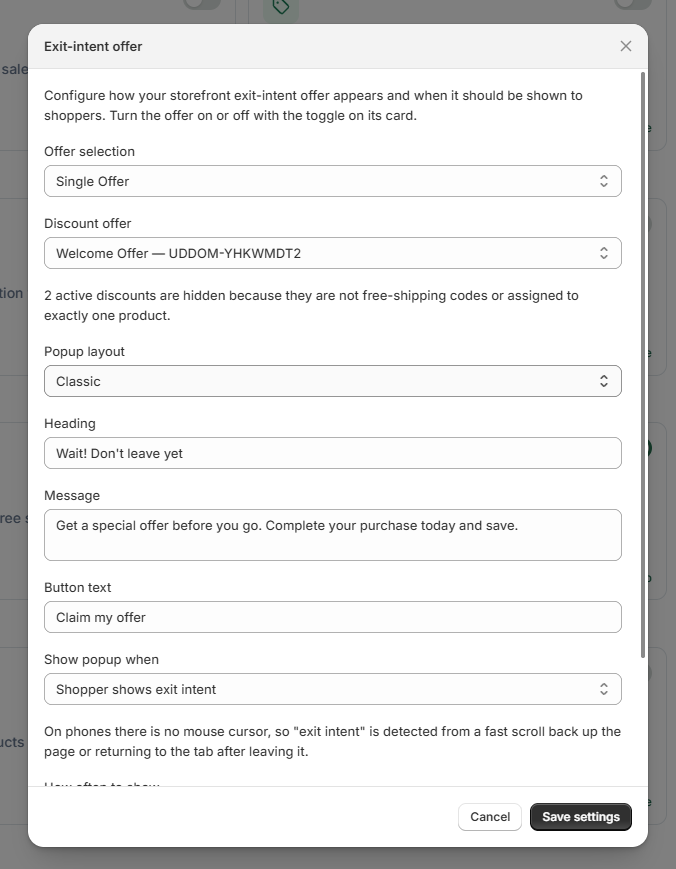 Exit-intent offer settings
What customers see#
A popup appears with your heading, message and button, offering the discount you selected. The shopper claims it and the discount is applied at checkout.
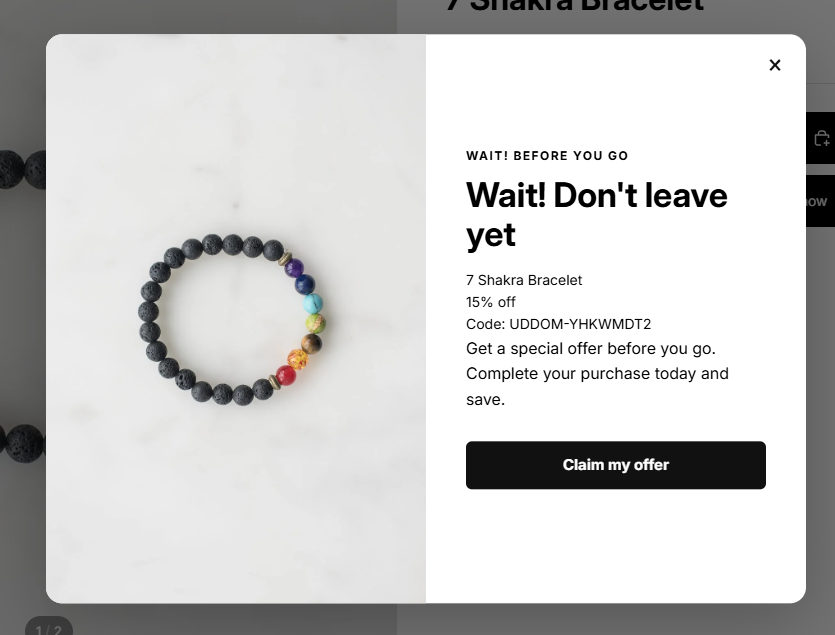 Storefront result: exit-intent popup
Best practices#
- Show the popup once per session rather than every time, so it feels helpful rather than repetitive.
- Keep the discount meaningful but not so large that it trains shoppers to wait for it.
- Write a heading and message that explain the offer in one line.
Troubleshooting#
- The popup never appears. Confirm the app embed is enabled, the module is on and configured, and the device setting includes the one you are testing on.
- No offers to select. Create a Discount Offer first.
- It appears too often. Change How often to show or lower Maximum popups per session.