The Recent sales popup surfaces a short notification about a purchase, so shoppers see that other people are buying from your store.
What it does#
Uddom shows small notifications in a corner of the screen. Each one has a title, a message, and — if you want — a product image and a “time ago” line. You control the position, the timing and what the messages say.
Why use it#
Seeing that others are buying is reassuring. It is one of the most familiar forms of social proof on a product page or storefront.
How to enable it#
- Open Growth → CRO and find Recent sales popup in the Social proof group.
- Switch the toggle on.
- Choose Configure, set the content and timing, then add the sales you want to show.
- Save.
Configuration#
| Setting | What it does |
|---|---|
| Enable recent sales popup | Turns the popup on or off inside the module. |
| Title | Default: “Recent purchase”. |
| Message |
Use {name} and {product} as
placeholders. Default: “{name} purchased {product}”.
|
| Layout | Classic, Minimal, Modern or Compact. Default: Classic. |
| Position | Bottom left, Bottom right, Top left or Top right. Default: Bottom left. |
Timing#
| Setting | What it does |
|---|---|
| Display duration (seconds) | How long each popup stays visible (1–30). Default: 5. |
| Initial delay (seconds) | Delay before the first popup (0–300). Default: 10. |
| Repeat interval (seconds) | Time between popups (1–1440). Default: 60. |
| Show product image | Shows the product image in the popup. Default: on. |
| Show time ago | Shows how recently the sale happened. Default: on. |
Sales to display#
The app lets you add the sales that should appear. Each entry needs a product, an optional customer name and how many minutes ago it happened. Choose Add sale to add one, and Remove to take one out. The app labels this list “Fake sales”, which makes clear that these are entries you set up rather than a live feed.
These notifications are the entries you configure, not a live record of checkout activity. Keep the entries realistic and true to your store, in line with your local advertising rules, so the popup builds trust instead of undermining it.
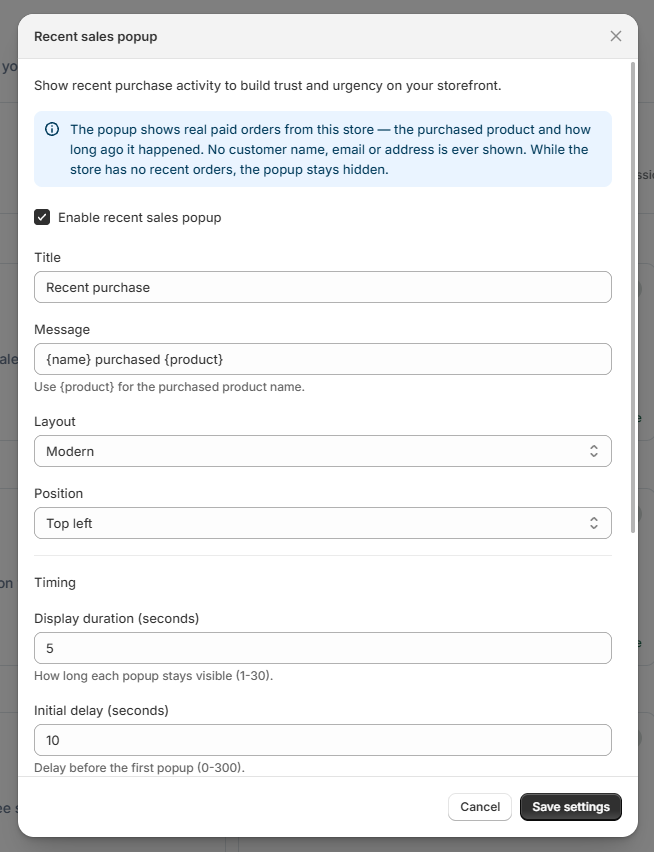 Recent sales popup settings
What customers see#
Shoppers see a compact card in the corner you chose, showing your message with a placeholder-style customer name and the product, plus the image and time-ago line if you enabled them.
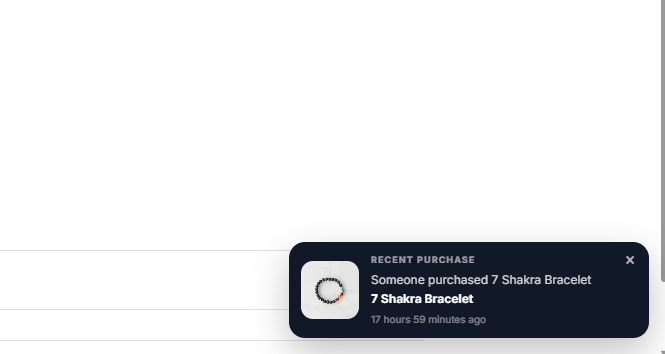 Storefront result: recent sales popup
Best practices#
- Keep the delay modest (5–15 seconds) so the popup is not the first thing a shopper sees.
- Use a repeat interval that does not interrupt reading.
- Add a handful of entries so the same one does not repeat too often.
Troubleshooting#
- No popups appear. Confirm at least one sale entry exists, the module is switched on and configured, and the app embed is enabled.
- The product image is missing. Popups need Show product image turned on and a product that has an image.