The Post-purchase upsell offers one extra product right after payment, on Shopify’s post-purchase page. Because the shopper has already paid, adding the item is a single click — no need to re-enter payment details.
What it does#
You choose up to four products to offer, a layout, a discount and an eligibility range based on the order subtotal. Shoppers see the offer after payment and can add it to the order they just placed.
Why use it#
Post-purchase is a high-intent moment: the shopper has just committed, so a relevant, one-click add-on is very easy to accept.
How to enable it#
- Open Growth → CRO and find Post-purchase upsell in the AOV booster group.
- Switch the toggle on.
- Choose Configure, add your products and set the offer.
- Save.
- In your Shopify admin, open Settings → Checkout → Post-purchase page and select Uddom CRO, then click Save. Until this is selected, no app runs after payment and the offer never appears.
Configuration#
Offer Products#
Choose up to 4 products to display. Each product row has a Variant selector (sold-out variants are marked).
Offer content#
| Setting | What it does |
|---|---|
| Headline | Default: “Special offer just for you”. |
| Description | Default: “Add this item to your order at an exclusive price.”. |
| Layout | Classic Center, Split / Two Column, Product Card, Bold Offer or Minimal Premium. Default: Classic Center. |
Discount#
Choose Percentage off or Fixed price, then set the value. The label swaps between Discount percentage and Offer price to match.
Eligibility#
Set a minimum and/or maximum order subtotal so the offer only shows on orders within that range. Leave a field empty for no bound.
Buttons#
Set the accept button text (default “Add to My Order”) and the decline text (default “No Thanks”).
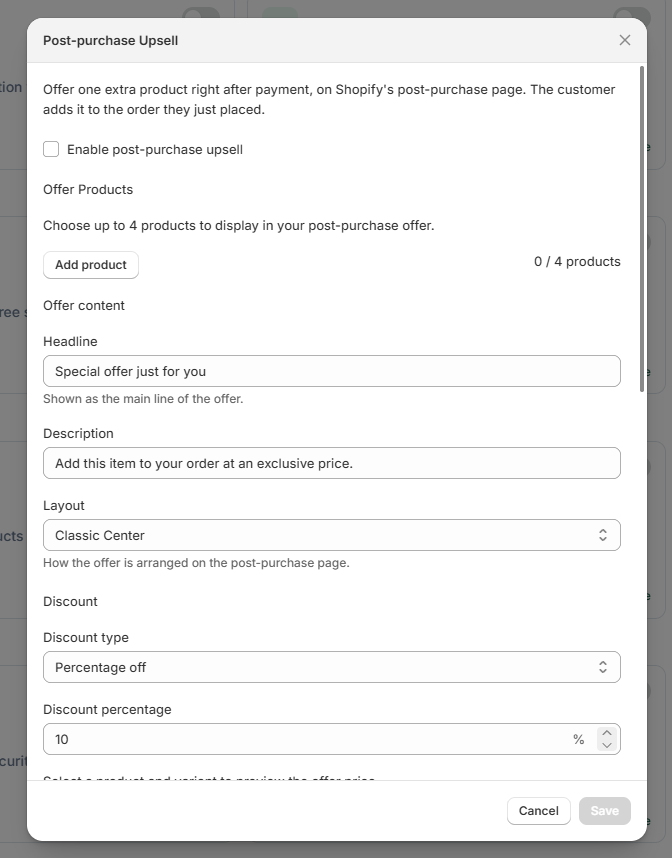 Post-purchase upsell settings
The offer only runs when Uddom CRO is the app your store uses for the post-purchase page. In your Shopify admin open Settings → Checkout → Post-purchase page, select Uddom CRO and click Save. While that setting stays on None (the default), no app runs after payment and the shopper goes straight to the thank-you page — the feature looks broken even though the app is fine.
What customers see#
After completing payment, the shopper sees your headline, the product, the price with your discount applied, and the accept and decline buttons. Accepting adds the item to the order they just placed.
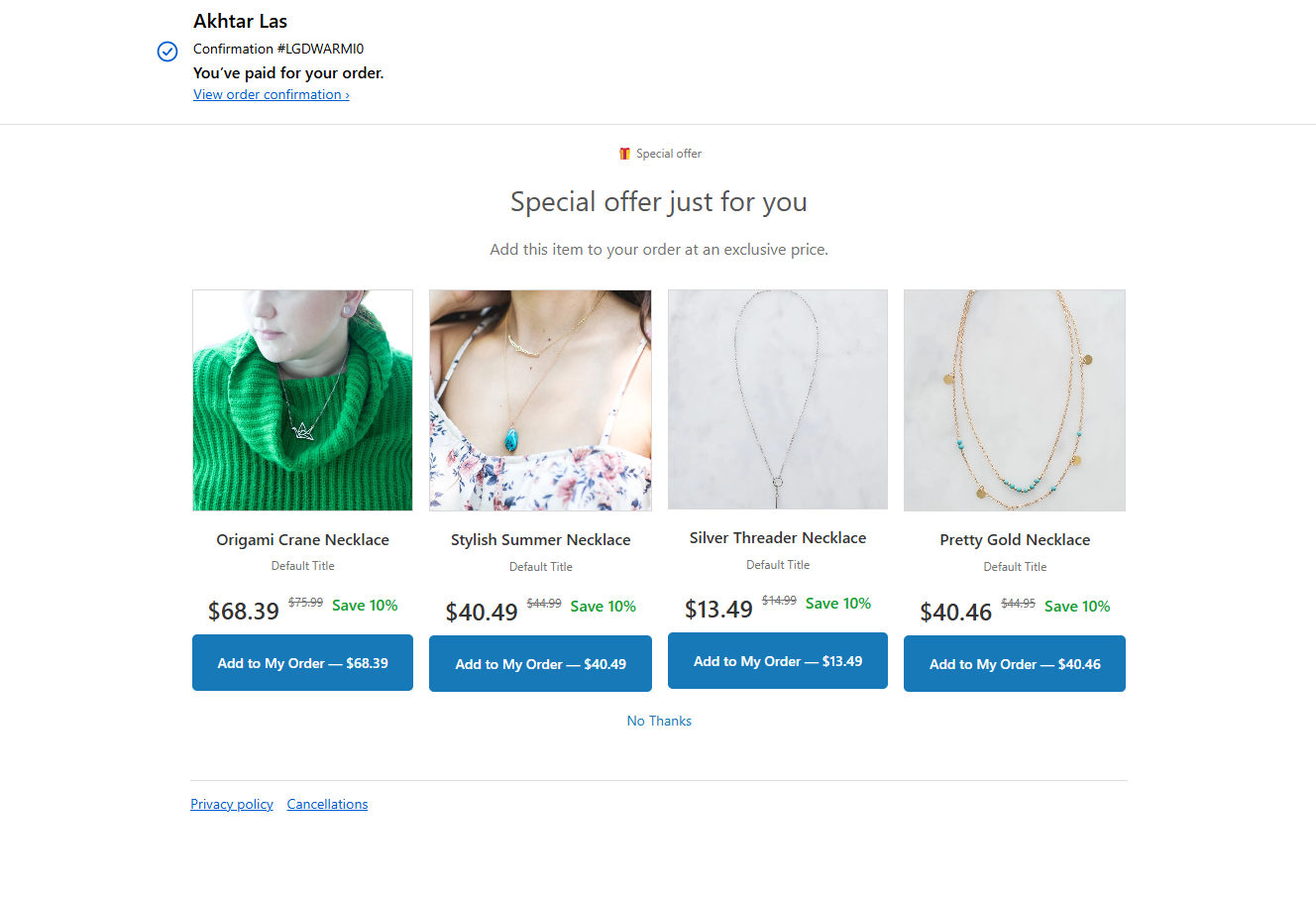 Storefront result: post-purchase offer
Best practices#
- Offer a genuine complement to what the shopper just bought.
- Use the eligibility range to keep the offer relevant to the order size.
- Keep the headline short and the decline option honest.
Troubleshooting#
- The offer never appears and the shopper goes straight to the thank-you page. Open Settings → Checkout → Post-purchase page and make sure Uddom CRO is selected, not None. Only one post-purchase app can be selected at a time, and this setting has switched itself back to None before, so check it first. Then confirm the module is on with at least one product, each product has an available variant, and the order subtotal falls within your eligibility range.
- The offer never appears on a checkout in another currency. Shopify does not show post-purchase offers on multi-currency orders, so the page is skipped when a shopper checks out in a currency other than your store’s default currency.
- A variant is missing. Sold-out variants are marked in the variant selector; choose an available one.